
People often think you must "open a room" to get a group participating. Not true: in EduTools, most activities can be shared with a simple QR code or link, without going through a full room. Here is how this direct access works, what the virtual room adds, and above all how to choose between the two.
To put an activity in front of your learners, EduTools offers two paths with different purposes:
These aren't two competing versions of the same product, but two answers to two different needs: distributing an activity on one side, facilitating a session on the other. Many trainers only know the room and, without realising it, miss out on the fastest mode for half of their use cases.
From the list of your components (flashcards, kanban, sticky notes, mind map, quiz…), a "QR code & link" button instantly generates:
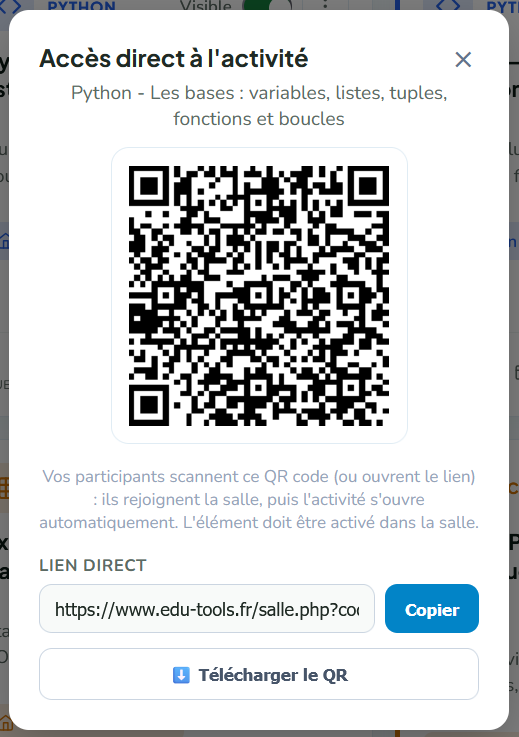
The participant needs no account and no app: they scan, they're on the activity. A detail that matters for your GDPR duties: the QR is generated locally, in the browser, with no request to any external service — no third-party tracker.
Direct access works for most components: quiz, flashcards, kanban board, sticky-note wall, mind map, whiteboard and interactive video. Better still, some of them (kanban, sticky notes, mind map, flashcards) are persistent boards or decks that you reuse and update from one session to the next.
The room remains the cockpit of a live session. It brings what direct access doesn't:
In short: direct access is for distributing an activity, the room is for facilitating a session. The two complement each other — you can perfectly prepare a kanban in direct access, then reuse it in a room on workshop day.
| Criterion | 📲 Direct access (QR / link) | 🏫 Virtual room |
|---|---|---|
| Setup | 1 click → QR + link to the activity | Create the room, enable tools, share the code |
| Participant side | Scan → straight onto the activity | Enters the code (+ first name), accesses the full space |
| Timing | Asynchronous, at their own pace | Live, facilitated in real time |
| Account required | No | No (first name only) |
| Tracking | Light (depending on component) | Full: attendance, results, per-learner logs |
| Components | Quiz, flashcards, kanban, sticky notes, mind map, whiteboard, interactive video | All + word cloud, wheel, flash poll, chat, synchronised slides |
| Best for | Review, homework, display, one-off activity | Facilitated training, tracked assessment, group cohesion |
The best mode depends on what you want to do, not on the tool:
And as soon as it's about facilitating a live session — recapturing attention, creating group dynamics, tracking attendance — the virtual room makes full sense again.
Just one question to ask yourself:
Are you facilitating live? → virtual room.
Are you distributing an activity to be done independently? → direct access via QR or link.
Generating direct access couldn't be simpler: from the component's list, open the ⋮ menu, click "QR code & link", then copy the link, display the QR or download it as an image to print. In a few seconds, your activity is ready to be scanned.
Three subscriptions, three interfaces, three exports — for one single need: engaging your learners. A detailed comparison and a migration plan to a single platform.
ComparisonsFive interactive quiz platforms compared on feature richness, price and fit for the European training market.
PedagogyEverything you need to move from a classroom session to a virtual classroom that holds attention and produces real learning.
Create your first interactive room in under 5 minutes. Free plan, no credit card.
Get started for free